3rd-party UI: User Guide
⚠️ Warning
This feature is currently in an beta stage. Bear Robotics does not guarantee stability, performance, or long-term support
A stable internet connection and reliable third-party hosting are required. Network or hosting issues may cause UI loading failures or unexpected behavior on the robot
Overview
-
What is 3rd Party UI?
- This feature allows customers to replace the default touchscreen UI on Bear Robotics robots with their own custom web-based UI
-
How it works
-
Customer side: Develop and host a web site that serves as the custom UI
-
Robot side: Once this feature is enabled, it loads the website on its touchscreen
-
-
Supported Robot Software Version
-
Servi: servi-25.02 or above
-
Carti: amr-25.02 or above
-
-
Refer to the BearAPI User Guide for API integration instructions
How to Enable
1. Enter Beta Settings
-
1.1 Go to the Settings
-
1.2 Tap a "Advanced" > "Beta Features"
2. Turn on the 3rd-party UI feature
-
2.1 Tap a "3rd Party UI Beta - View" button
-
2.2 Enter the URL under “3rd Party UI URL”
-
2.3 Toggle the feature "ON"
3. Return to the Home Screen
- The Home Screen will display the page corresponding to the URL you entered

Controls and Beahvior
-
Show and Hide the Status Bar
-
Swipe down the screen (upper-middle area) to show the status bar
- You can access the Settings
-
Swipe up the screen to hide the status bar and return to full-screen mode
-

-
Refresh Behavior
-
The user can manually refresh the UI by clicking the 'refresh' button in the status bar
-
The UI will auto-refresh after network recovery
-
-
System Overlay Screens
-
In certain situations, Bear’s built-in screens will appear over your custom UI:
-
Booting, Mapping, and Setting
-
Notice: I'm Stuck, Narrow Space, Localizaing
-
Mission: Mission Failed, Mission Paused
-
Emergency Stop: E-Stop Button Pushed
-
Battery: Low Battery, Charging
-
Multi-Robot: Waiting
-
-
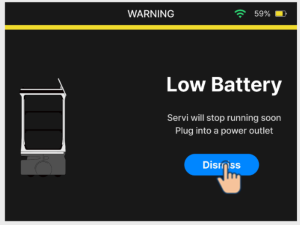

-
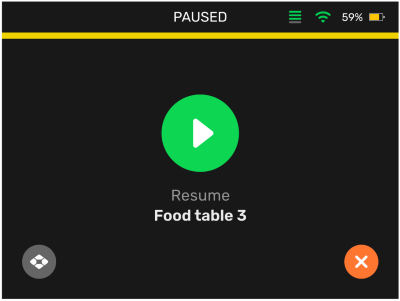
Pause Screen Behavior
- If the robot is paused, Bear’s built-in Pause screen will appear over your custom UI
Web UI Requirement
-
Server Response Header
- Avoid using x-frame-options: deny or sameorigin in the server response headers. These settings will block the robot from loading the web app.
-
Screen Resolution / Sizing
-
Servi, Carti: 1278 x 798
-
Servi Plus: 1022 x 766
-
-
Fonts
-
Use web fonts to ensure proper rendering across languages; otherwise, text may appear differently on the touchscreen
- Example: Pretendard, recommended for Korean language support
-
-
Swipe Action Area
-
The swipe action(“Swipe up and down”) occupies the following area on the screen
-
Position: top center
-
Size: width 128px, height 20px
-
-
Avoid placing key UI elements underneath this region to prevent interaction issues
-
-
Screen Mirroring in Fleet Control Suite
-
The Fleet Control Suite("Universe") supports mirroring functionality ("Telemetry")
-
The screen content is displayed remotely, but touch interactions are not supported
-
Troubleshooting
-
If the UI displays a white screen or does not refresh properly, follow the steps below:
-
Manually refresh it by navigating to Settings and click the "refresh" button
-
Check Wi-Fi connectivity
-
Check whether the entered URL is correct
-
Check whether the 3rd-party web hosting is accessible via a browser
-